Not much to post today. New SSD for server, laundry, some cleaning, trying out the new window cleaner. The cleaner was an x-mas present from my mom. Is that her subtle way of letting me know that my windows are dirty? :)
Read more →
… I was a musician. The time when I practice the piano for hours every day and the time I played at least a gig every week. Today I am an engineer with a profound understanding of music but with a lack is practice. Maybe that’s a good thing. Because there’s no pressure, no need to make a living out of music.
Today I had one of those once-or-twice-a-month gigs that I still do with a band called Bojazzl at a small bar, about an hour from Linz. Their piano player had broken his clavicle and they had asked me to jump in, which I really enjoyed. Although I would have needed more rehearsals to really make the most out of it.

While my job as IEEE Region 8 Student Representative involves working two and sometimes three levels higher up in the IEEE geographic hierarchy, I always enjoy staying in touch with the local student branch (SB) at JKU. After all that’s the entity where my IEEE track started.
Being past past past chair is one thing, but what is really rewarding and makes me happy is to see that the SB is even more active than in my days and that they prosper like never before. Apart from many other activities they still have their monthly series of Stammtische, which are social meetings that try to bring students and industry closer together.
That is exactly where I spent today’s evening: The IEEE Stammtisch featuring Commend.
This is how it works: The SB approaches companies that might be interested in giving a presentation. A company representative joins one of those meetings in a local bar and pays for drinks, food and some extra cash for the SB. In return the SB provides the infrastructure (beamer, …) and the students.
What’s in it for the company? To get in touch with potential future employees or customers. What’s in it for the students? To get in touch with potential future employers and to learn about what’s happening outside the academic world.
What’s in it for me apart from that? Grabbing a beer with friends, getting to know the future leaders of the SB and learning about what matters to the current generation of engineering students.

When looking at the last couple of my blog posts, you could think that I spend most of my time around computers. I guess that’s mostly because I rarely blog about other things. That’s about to change for the next 30 days.
A couple of years ago a came across this TED talk entitled “Try something new for 30 days”.
I’ll do it again and this time the challenge is to write a blog post every day, for 30 days. Many of the posts are going to be boring and are not going to be relevant to anyone, so I am not going to push them through facebook, twitter or anything else, but they will be here.
Thank you all for dropping by in 2013! For those who care, here are the blog stats that wordpress sent me for 2013: http://jetpack.me/annual-report/16165614/2013/
I wish you and your loved ones all the best for 2014 and enjoy today’s party!
The Logitech K810 is a nice keyboard, but it does not work with Ubuntu out of the box. Still contrary to what some websites might lead you to believe, it does work. The following instructions worked for me on Ubuntu 13.10 & 14.04.
-
Start a terminal (terminal 1)
-
Install the tools needed for this walk-through
sudo apt-get install bluez-hcidump bluez-utils blueman -
Enable Bluetooth on your Ubuntu machine (you might have a hardware button, don’t forget about that)
-
Start the bluetooth manager (blueman) from your start menu, dash, or whatever other way of starting programs your desktop has
-
Start another terminal (terminal 2) - yep you’ll need two for this exercise
-
Get the K810 into pairing mode by pressing the button on the back of the keyboard and then one of the device buttons on the front (F1-F3). You should see the bluetooth light flashing now.
-
In terminal 1 run
hcitool scanif the K810 is found this should give you something like
Scanning ... xx:xx:xx:xx:xx:xx Logitech K810 -
Copy the address of your K810 (that’s the xx:xx:xx:xx:xx:xx)
-
In terminal 2 run
sudo hcidump -at | grep pass -
In terminal 1 run
sudo bluez-simple-agent hci0 xx:xx:xx:xx:xx:xx -
In terminal 2 you should now see the passkey which is a number
-
Type that code on your K810 followed by enter
-
The bluetooth manager should now show the K810.
-
In blueman select the K810 and mark it as “trusted”
-
Now click on Setup and follow the dialog box.
-
Tada, you’re done, you can now close all terminals as well as blueman.
The Function Keys
By default, the function keys (the ones above the numbers row) are assigned to special functions like media control, which I find annoying. - Every time you want to do something normal like Alt-F4 or search via F3 you need the Fn key. Logitech’s windows software on the other hand lets you invert the Fn key. Actually all the Windows software does is to send a certain string of commands to the keyboard, which some clever Linux Guru has reverse engineered and coded into a nice little program, that can be found at http://www.trial-n-error.de/posts/2012/12/31/logitech-k810-keyboard-configurator/. I’ll again add a step-by-step guide:
-
Optional: Go to http://www.trial-n-error.de/posts/2012/12/31/logitech-k810-keyboard-configurator/ and read about how he did it ;)
-
Install a compiler
sudo apt-get install build-essential -
Download and extract Mario’s program
wget https://blog.chschmid.com/media/k810_conf-v0.1.tar.bz2 tar -jxf k810_conf-v0.1.tar.bz2 -
Compile it
./build.sh -
Run it
sudo ./k810_conf -d /dev/hidraw<x> -f onYou will have to replace
by the hid number that was assigned to your keyboard. In my case it is hidraw2. Of course there are more clever ways, but just work through the numbers brute force starting with hidraw0. - Mario’s program is clever enough to detect if it’s not the K810.
Apart from some minor owncloud glitches me.chschmid.com is running pretty smoothly right now. It’s doing a great job, both as my server and my Desktop replacement. But I can’t guarantee that it will stay that way. Neither can I expect the hard disk drives (HDD) to last forever nor can I guarantee that some idiots won’t burn down the apartment building by setting their Christmas tree on fire. (Don’t laugh, it has happened to my sister)
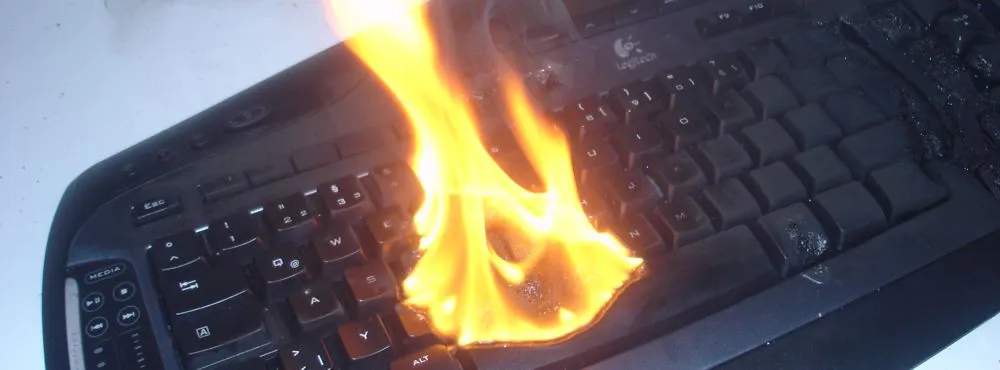 Used under CC BY-SA 3.0, originally by Diether
So a backup strategy is in inevitable. Now for the first scenario (a dying HDD) people have come up with a solution known as RAID. However that is not what I am doing. For simplicity, I just copy most of my important stuff from one HDD to another once a day. - Actually the server does this automatically via a cron job file /etc/cron.d/cSBackupLocal
12 4 * * * root /usr/local/bin/cSBackupLocal.sh;which executes a simple rsync script /usr/local/bin/cSBackupLocal.sh that does
# Backup data from first hard drive (me1) to second hard drive (me2)

# GIT - My life and stuff
rsync -a --delete /media/me1/git/   /media/me2/Backup/git

# Music - My other life support
rsync -a --delete /media/me1/Music/ /media/me2/Backup/Music

# owncloud
rsync -a --delete /media/me1/ocdata/ /media/me2/Backup/ocdata
The second scenario (house burning down) can not be dealt with that easily. E.g., with the two HDDs that do the mirroring once a day at the same location, a fire would destroy both. So you have to have a copy at some other place.
My most important things (about 20 megs) I have in an encrypted archive that is synced to Dropbox. Things like my Keepass file and Scans of important documents. - You are right, they might give that file to the NSA or something, but as it is encrypted they’ll chew on it for a while.
The only viable solution for my more extended remote backup is to have an external hard drive, that I bring for doing a backup every now and then. When it is not plugged into my server for backup it is stored away safely somewhere else. - As in not within a 5 km range of my apartment. Obviously this system has flaws, like if there is a fire the day I do the external backup, I am still screwed. - But I guess that is as safe as it gets.
Ubuntu comes with almost everything that you can think of out of the box. And almost all of those little exceptions can be found elsewhere. So here’s how to install a couple of those things that I just would not want to miss ;)
Spotify
sudo add-apt-repository "deb http://repository.spotify.com stable non-free"
sudo apt-key adv --keyserver keyserver.ubuntu.com --recv-keys 94558F59
sudo apt-get update
sudo apt-get install spotify-client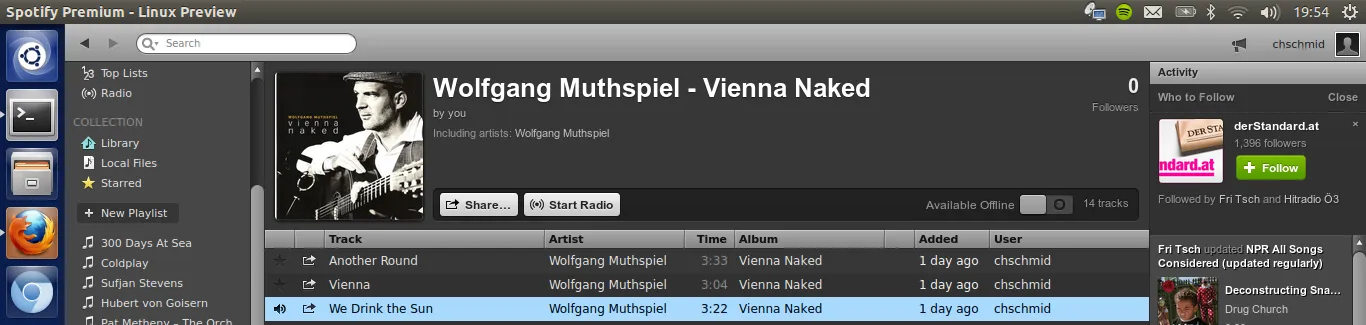
jdotxt
I have written an app to keep track of my todos, lets install it!
sudo add-apt-repository ppa:chms/jdotxt
sudo apt-get update
sudo apt-get install jdotxt
owncloud client
Can be installed as described at http://software.opensuse.org/download/package?project=isv:ownCloud:devel&package=owncloud-client
sudo echo 'deb http://download.opensuse.org/repositories/isv:ownCloud:devel/xUbuntu_13.10/ /' >> /etc/apt/sources.list.d/owncloud-client.list
sudo apt-get update
sudo apt-get install owncloud-clientSo far the server was in a protected environment, but it’s time to let it see the world! This involves three things:
- Setting up the server firewall
- Configuring the dyndns stuff
- Setting up the router
Server Firewall
You only want those ports to be open that you really need. I’d recommend using ufw for configuring your firewall. In my case
sudo ufw allow ssh
sudo ufw allow http
sudo ufw allow https
sudo ufw deny proto udp to any port 137 from 192.168.22.1
sudo ufw deny proto udp to any port 138 from 192.168.22.1
sudo ufw deny proto tcp to any port 139 from 192.168.22.1
sudo ufw deny proto tcp to any port 445 from 192.168.22.1
sudo ufw deny proto tcp to any port 9000 from 192.168.22.1
sudo ufw deny proto tcp to any port 5901 from 192.168.22.1
sudo ufw deny to any port 3483 from 192.168.22.1
sudo ufw allow proto udp to any port 137 from 192.168.22.0/24
sudo ufw allow proto udp to any port 138 from 192.168.22.0/24
sudo ufw allow proto tcp to any port 139 from 192.168.22.0/24
sudo ufw allow proto tcp to any port 445 from 192.168.22.0/24
sudo ufw allow proto tcp to any port 9000 from 192.168.22.0/24
sudo ufw allow proto tcp to any port 5901 from 192.168.22.0/24
sudo ufw allow to any port 3483 from 192.168.22.0/24
which means allowing access to SSH, HTTP and HTTPS from anywhere in the world and to the squeezebox server and the Samba server only from the local network but not from the router. Finally you need to enable the firewall:
sudo ufw enableDyndns Stuff
My provider gives my router a new IP (= unique address on the web) from time to time. To be able to find my router/computer from the outside world, I have to report my IP to someone who can help me find it any time. Here is how it works: me.chschmid.com points to chschmid.mooo.com and chschmid.mooo.com I have tell what my current IP is when it has changed. It’s less complicated than it sounds
- Get an account at http://freedns.afraid.org/
- Download the latest IPdetect from http://ipdetect.sourceforge.net/
- and set it up as described in the readme file ;)
By the way if your router is running on a modified firmware such as DD-WRT, this task can also be handled by your router and configured via its web interface. Just search for Dynamic Domain Name Service (DDNS). Sadly DD-WRT is not an option for me as the 5 GHz support is broken for my router :(
The Router
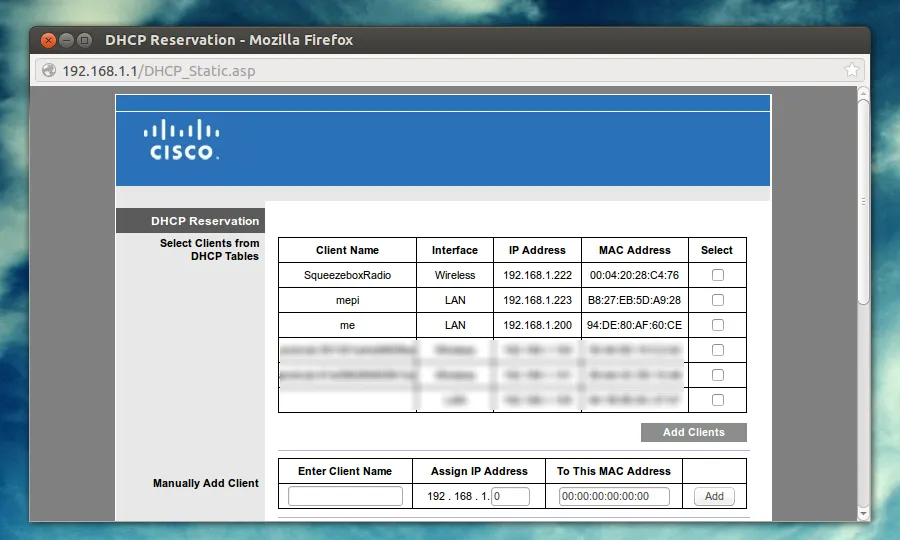
First I had to tell my router that my server should always get the same local IP 192.168.1.200 based on its MAC address.
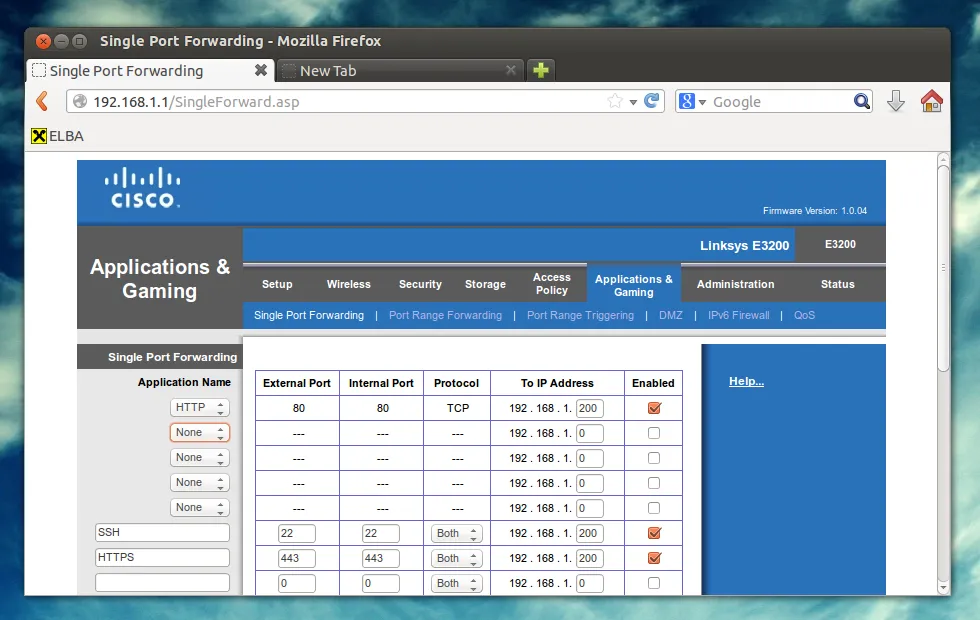
And secondly ports 22, 80 and 443 have to be forwarded to that local IP. Here’s a screenshot what this looks like in my case.
 Now this calls for some champaign! The server is set up and online! You can take a look at some server stats at https://me.chschmid.com.
With the base OS up and running it’s time to install and configure all the services. By the way it is important that the server is not connected to the Internet directly yet. - Working behind a router is ok. You just don’t want that out your server can be accessed via the web already.

SSH
SSH is a secure way of accessing your machine from anywhere. You can transfer files, run commands, tunnel services and probably much more using SSH in an easy and encrypted way. After the server installation SSH is running already. But I did some modifications to the config file “/etc/ssh/sshd_config” to make it even more secure. Basically I added one line
AllowUsers christian cs-gitto only allow incoming connections for those two users. Restarting the ssh daemon can be done via
sudo service ssh restartApache
I don’t want my machine to be accessible via HTTP, but only through the more secure HTTPS. So I configured port 80 to redirect to 443 and enabled https. I also added the following lines to my https config file
SSLProtocol all -SSLv2 -SSLv3
SSLHonorCipherOrder On
SSLCipherSuite
ECDH+AESGCM:DH+AESGCM:ECDH+AES256:DH+AES256:ECDH+AES128:DH+AES:ECDH+3DES:DH+3DES:RSA+AES:RSA+3DES:!ADH:!AECDH:!MD5:!DSS
SSLCompression Off
to make the encryption more robust. - You can check how robust your encryption is via https://sslcheck.globalsign.com.The apache server can be restarted again via
sudo service apache2 restartOwncloud
… can be installed easily via an opensuse repository at http://software.opensuse.org/download/package?project=isv:ownCloud:community&package=owncloud. The configuration works via the web interface https://localhost/owncloud. In my case I just transfered the complete database from my old machine to the new server.
Samba Server
The Samba Server is used to share files locally, so that I can download the music files stored on the server from my tablet whenever I am in my local network and stuff. - Again Samba should be installed already and only needs to be configured. I added
[media]
    comment = Media
    path = /home/media
    browsable = yes
    guest ok = yes
    writeable = no
    write list = media
    force group = media
    create mask = 0775
to my “/etc/samba/smb.conf” to share what is in the /home/media folder and allowed following symlinks
follow symlinks = yesI forgot of course I also created a user media using “sudo adduser media”. I again restarted smbd and nbmd
sudo service smbd restart
sudo service nmbd restart
Squeezebox Server
I use this system to stream my audio across multiple devices (including my Raspberry Pi). To install the server run
sudo add-apt-repository "deb http://debian.slimdevices.com stable main"
sudo apt-get update
sudo apt-get install logitechmediaserver
Misc
I also installed and configured the following things
- A vncserver (x11vnc)
- The Plex Media Server (can be found in Ubuntu’s repositories)
Im glad you made it to the end of this rather boring post, but that is what servers are all about: Running boring stuff in the background that makes our lives easier and more connected.